

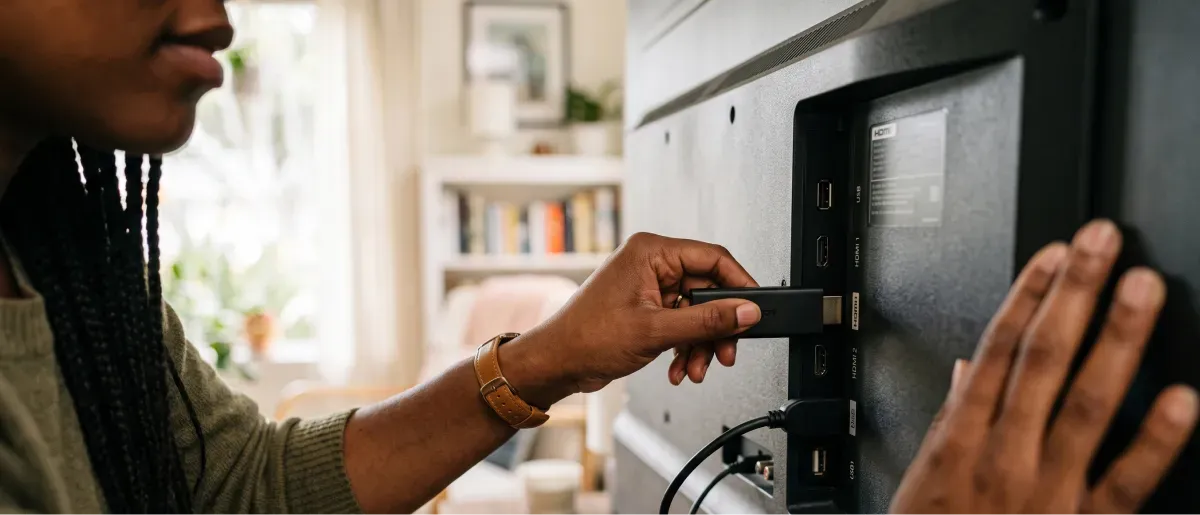
If you're wondering how to watch DISH Anywhere on your TV, the easiest option is a compatible Fire TV device or Android TV, where DISH Anywhere has a native app. Roku does not have a native DISH Anywhere app, while Samsung and LG smart TVs generally require an external streaming device or another supported method.
If you watch DISH Anywhere on your phone and want to move that experience to your television, the process depends on the device connected to your TV. Here's what you need to know about DISH Anywhere on Fire Stick, Roku, Android TV, and other smart TVs, including activation and common troubleshooting steps.
Before trying to put DISH Anywhere on your smart TV, make sure you have the following:
DISH Anywhere connects your compatible device to your DISH service. For many features, the stream comes from your connected receiver, so your Hopper's internet connection matters. If possible, connect the Hopper to your home network with Ethernet rather than relying on Wi-Fi.
Installing the DISH Anywhere app with a Fire Stick is straightforward, since Amazon Fire TV/Fire Stick is a supported DISH platform.
To install it:
The same basic process applies across compatible Amazon Fire TV devices, including Fire TV Stick models and other supported Fire TV hardware. The exact menus can vary slightly depending on your Fire TV software version.
If you search for the app and it doesn't appear, first check that your Fire TV software is up to date and that your device meets DISH compatibility requirements. Fire TV/Stick OS 7 is the current minimum supported version.
Once you install the app, you'll need to connect the TV to your DISH account. This is where the DISH Anywhere activation code shown on your TV comes in.
Follow these steps:
DISH's current activation instructions also reference using an internet-connected computer or smart device to visit the activation page.
One important detail: don't try to activate the TV through the DISH Anywhere website on the TV itself. DISHAnywhere.com is supported on desktop and laptop browsers, while phones, tablets, Fire TV, and Android TV devices should use the app. Chrome and Safari are the currently supported browsers; Edge, Firefox, Internet Explorer, and Silk are not supported.
If activation fails, make sure you're using the correct DISH Online ID and entering the code exactly as it appears on the TV.
That means you shouldn't expect to find DISH Anywhere by searching Roku's channel library, and you should be cautious about websites or videos promising unofficial channel codes or workarounds.
This is particularly important if you're searching for DISH Anywhere Roku instructions and finding conflicting advice. A Roku TV is still a Roku device, so having a smart TV does not automatically make the DISH Anywhere app available.
You may find instructions online for DISH Anywhere screen mirroring with Roku, but mirroring isn't the same as having a native Roku app, and it isn't a reliable solution for all DISH content.
Copy-protected programming can prevent video from appearing even when audio continues to play. In other words, you could end up with a black screen instead of the program you're trying to watch.
For a more dependable TV experience, a compatible Fire TV device or Android TV device is the better choice. If you specifically want to cast from a phone or tablet, you can watch DISH Anywhere with Chromecast.
Android TV is one of the supported platforms for DISH Anywhere. DISH lists Android TV OS 7 as the minimum supported version.
If you have a compatible Android TV device or television, search for DISH Anywhere in the available apps, install it, and follow the on-screen activation instructions.
Compatible Android TV hardware can include televisions and streaming devices from manufacturers such as Sony and other Android TV brands. Always check the device's current software version before troubleshooting an installation problem.
If you're searching, “Can I watch DISH Anywhere on Samsung TV?” or “DISH Anywhere on LG TV”, don't assume the TV's built-in app store will have the service.
Currently, Samsung and LG smart TV operating systems are not native DISH Anywhere platforms.
To watch DISH Anywhere on your Samsung or LG smart TV, connect a supported external device, such as a Fire TV Stick or compatible Android TV device. You can also cast your app from another device with Chromecast.
A Roku television follows the same rules as other Roku devices: there is no native DISH Anywhere app. For the most consistent experience, use a supported external streaming device instead.
Having trouble after installing the app? Start with the issue that best matches what you're seeing.
If you want the simplest answer to how to watch DISH Anywhere on your TV, use a compatible Fire TV or Android TV device. Both support the native DISH Anywhere app, so you can install it directly and activate it with the code displayed on your TV.
Roku does not currently offer a native DISH Anywhere app, while Samsung and LG smart TVs aren't listed as native supported platforms. Rather than relying on unofficial workarounds, use a supported external streaming device. DISH also officially supports Chromecast casting from the mobile app.
Once you're set up, you can use DISH Anywhere to access supported live TV, recordings, and On Demand programming on your compatible device. You can also download recordings for offline viewing if you’re traveling or staying somewhere with shoddy service.
Ready to compare your options? Explore available DISH TV packages or check DISH availability in your area to find the right service for your household.

